
Before you can run a fraud check, you need one file: a Search Terms Report exported from your Google Ads account as a CSV. This guide walks you through the exact steps.
What you need before you start
You need Standard or Admin access to the Google Ads account you want to analyze. This guide applies to Search campaigns. If you run Performance Max or Shopping campaigns, read the note at the end of this page before proceeding.
Step 1. Open the Search Terms Report
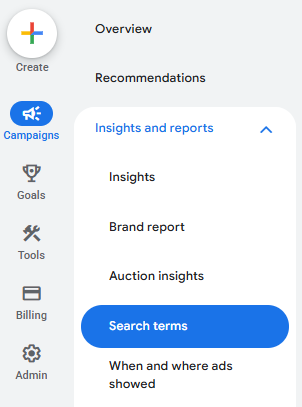
Log into Google Ads. In the left-hand navigation, click Campaigns. In the dropdown that appears, find the section called “Insights and reports” and select “Search terms.”
Step 2. Select your campaign and date range
At the top of the report, use the campaign selector to choose the Search campaign you want to analyze.

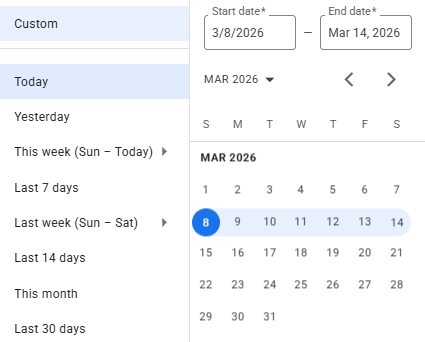
Then set your date range. Our tool analyzes one full calendar week at a time. Select any range that includes at least one complete week. If you select a longer range, the tool will use the first full week in your file.
Step 3. Configure the columns
The default column set already includes everything our tool needs: Clicks, Impressions, Cost. The only column you need to add manually is Keyword.
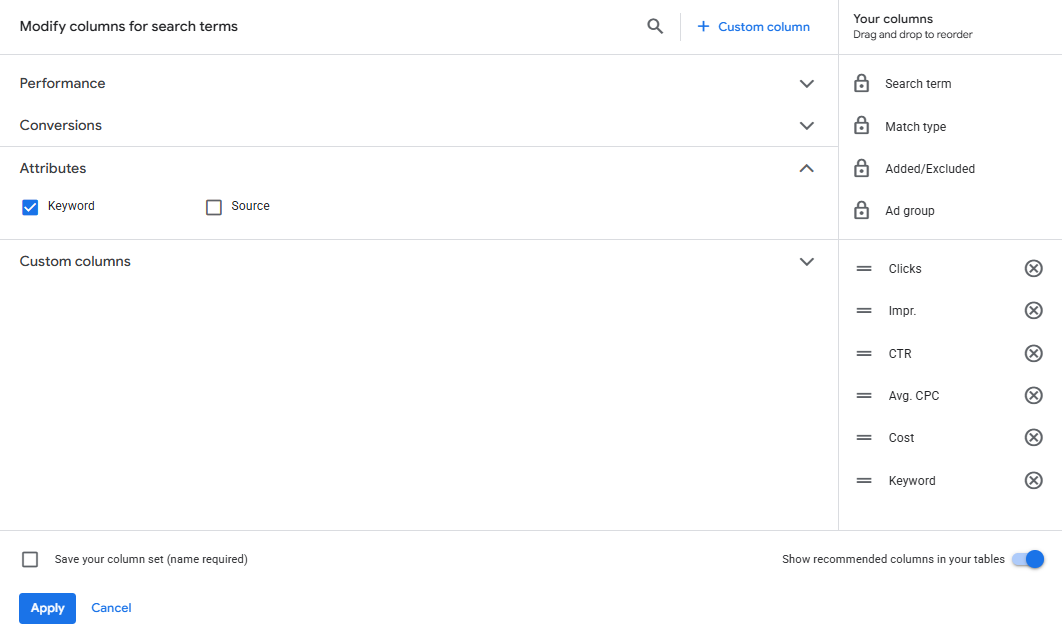
To add it, click the “Columns” button above the report table and select “Modify columns.”

In the search field at the top of the panel, start typing “keyword” — the Keyword option will appear immediately. Check the box next to it and it will be added to the right-hand column list. Then click Apply.
Step 4. Set the time segment
Before exporting, you need to segment the report by day — otherwise the file will contain only totals, with no per-day breakdown that our tool requires.
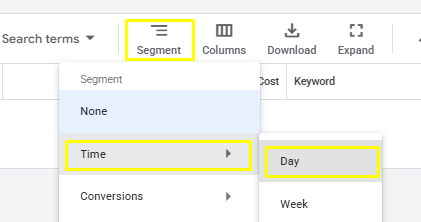
Click the “Segment” button above the report table, select “Time,” then select “Day.” The report will reload showing one row per search term per day.
Step 5. Export the file
Click the Download button above the report table and select CSV.
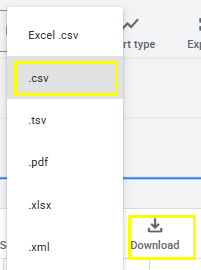
Wait for the file to finish downloading. Do not open or edit the CSV file in Excel before uploading — Excel can silently reformat date columns, which will cause a validation error in our tool.
Step 6. Upload to ClickFraudLab
Go to clickfraudlab.com/free-fraud-check/, drop your CSV file into the upload area, then click the “Analyze my report” button to start the check.
A note on Performance Max and Shopping campaigns
The Search Terms Report technically exists for Performance Max campaigns as well, but it is a separate report with a different structure and significant limitations.
For Performance Max, the report is accessed via a different menu item: Campaigns > Insights and reports > Search terms and landing pages for Performance Max. According to Google’s documentation, this report has several constraints. Historical data is only available starting from March 2023. Google explicitly recommends prioritizing conversion data over clicks and impressions for PMax evaluation, which indicates that impression-level data in this report may be incomplete. Beyond that, Performance Max campaigns run across multiple channels simultaneously — Search, YouTube, Display, Gmail — and the export structure reflects that mixed inventory rather than pure search traffic.
We have not validated our tool against Performance Max or Shopping exports and cannot guarantee correct parsing. If your account runs both Search and Performance Max campaigns, filter by your Search campaigns specifically when following this guide.